Showing posts with label itunes tutorial. Show all posts

Thursday, November 8, 2012

How to Move Backup Application to Other Computers

How do I move the backup application to another computer? Have you ever encountered this problem? Illustrations or examples of cases that may occur are as follows: you have iTunes installed laptop where many applications have been downloaded for the iPhone / iPad / iPod. Synchronization using a laptop you've always done it. But lately 3G internet connection in your home so that impaired activity of downloading the latest applications from iTunes to move to the computer where you work. Of course, to download the new application you need to install the iTunes on the computer in your office and allow the computer to access your iTunes account.

Keep in mind that Apple only allows a maximum of 4 different computers used to access the same iTunes account. Well, once you've downloaded the new application can not directly connect your iPhone / iPad / iPod at the office computer. Why is that? Remember that the information on applications that have been installed into your gadget stored on your laptop. Your computer in the office do not have this information so that when you synchronize using the office computer all applications will be automatically deleted by iTunes. To avoid it then you can move the backup application to another computer (laptop) so that applications that have been installed are not removed automatically.

Important Things to Know Before Moving to Another Computer Backup Applications


Okay, after understanding about the illustrations or examples of cases that I have described above, the way we do to avoid automatic deletion when the sync is to move the backup application to another computer (laptop in this case). After moving the application you want to install the file to the computer that is used to synchronize the next step is to synchronize the living. Well before forgetfulness there is one thing you need to know before moving the application file to be installed is the place where iTunes put the downloaded files on your computer's iTunes Store.

Place Files Applications in Windows Vista / 7

iTunes will put the downloaded files from the iTunes Store on the folder "Libraries \ Music \ iTunes \ iTunes Media \ Mobile Applications \".


Place Files Applications in Windows XP

iTunes put all file downloads from the iTunes Store on the folder "C: \ Documents and Settings \ USERNAME \ My Documents \ My Music \ iTunes \ iTunes Media \ Mobile Applications \". Where USERNAME is the name of your users to Windows XP.

Tutorial Backup Application to Other Computers

The steps that must be done to move the application file is as follows:

  1. Open the folder where the application where you download applications from the iTunes Store (see address given above folder, adjust the operating system of your computer), select the application file and move it to a flash drive or external hard drive you.
     choose the apps to backup
  2. Move applications from a flash drive / external hard drive to the computer where you synchronize. Place the application file folder at the address corresponding to the computer's operating system.move apps to flash disk 
  3. Run iTunes and do not close the window where you put your application files are copied in the step above. Find the file you want to install, left-click once on the file name. While holding the left mouse button, drag and move it into your iTunes Library on.drag apps to itunes 
  4. The files will be installed should now exist in your iTunes libraries. Try checking to see Apps in the iTunes menu.
    transfer backup apps to other laptop 
  5. The final step is of course to synchronize the first select the application you want to install.sync apps

well it is quite easy to do right?? From This tutorial you don't need to be confused when downloading a new application on your computer that is not used as a synchronization. With the tips move backup to another computer application as described above, then the installation of the downloaded file is a simple thing to do

Friday, November 2, 2012

How to Make iTunes Account Without a Credit Card

Yesterday one of the readers of this blog asked me how to create an iTunes account without a credit card. This is because when the reader was inquiring buy gadgets at the Apple reseller store, iTunes account used to register for the new gadget to iTunes account was not hers. All the gadgets Apple must be registered to iTunes when you first bought it. If you do not already have an iTunes account is legitimate to use another person's account for registering. But keep in mind that registration using iTunes account that is not yours can bring headaches later on. So my advice is before you buy Apple gadgets make your own iTunes account first. To make an iTunes account you only need one active email account. Credit card information is only required if you buy apps or songs on Tunes. Okay without further ado here's how to create an iTunes account without a credit card.

Make iTunes Account Without a Credit Card

Need I remind you that the tips that I will explain here is how to create itunes account without the need for credit card information through a computer / laptop that has been in the latest version of iTunes installed. Follow the steps below carefully so you can make an iTunes account without a credit card:

  1. Launch the iTunes application on your computer. Ensure that there is no iTunes accounts that are logged by choosing Store> Logout.
  2. Select iTunes Store in the menu on the left. Then choose one of the programs "FREE APPS" for purchase. Take great care that you have to choose is a no-cost program. The easiest way is to look at the right-hand menu and select the "FREE APPS".
    how to create itunes account
  3. For example I chose Google+ application that can be downloaded for free through the iTunes Store. Click on "Free App".
    create itunes account without credit card
  4. A window will appear asking you to enter your user name and password or create a new account. Select "Create New Account".
    how to create itunes account
  5. In the window that appears, select "Continue".
  6. In the next window check the option "I have read and agree to these terms and conditions." And click "Continue".
  7. Enter your email information, passwords, questions and answers you should write if you forget the password, and birth date. To make sure that the password is the password you select no less than 8 characters, contain at least one uppercase letter and contains numbers.
    itunes enter email addres
  8. In the next window you will be prompted to choose the method of payment you use. Select "None" and fill in the other information. Here, keep in mind the importance of choosing applications that include the "Free Apps" before creating a new account. If at the beginning we did not choose any of the "Free Apps" to download the payment option "None" does not appear. After filling in all the required information then click "Continue".
    itunes account create

  9. Window appears stating that an email has been sent to your email address containing a link to verify your email.
  10. The next step is to check your email. If you have correctly entered your email address then you should be getting a new email content is the same as in the picture. In the email also inserted a link you must click to verify your email address.
  11. After verifying it will display a confirmation that you have an iTunes account can be used.
    create itunes account finish

Advantages and Disadvantages Make iTunes Account Without a Credit Card

The advantage that you get from making an iTunes account without a credit card is certainly able to download all applications free alias paid. Without an iTunes account that you can not necessarily do. Lack of an iTunes account without having a credit card is that you can not buy paid apps. There are millions of applications for Apple gadgets in the iTunes store which I sold at a very low price but with excellent quality. So if you do not feel the need to buy paid apps then create an iTunes account without a credit card is an absolute need to do.

Safe Shopping Tips On iTunes / Appstore

If you are shopping for apps, songs, videos, etc. via iTunes or the App Store, then you need to read some tips on shopping safely on iTunes or the App Store like what On this article that I write. For those of you who do not already have an iTunes account, it can be read in advance tips how to create an iTunes account without a credit card that I've ever written before. Without a credit card, you can still shop at iTunes and the App Store, but only for apps, songs or videos that free. If you have a credit card then the credit card information you can add to your iTunes account to purchase apps, songs or videos paid. But the shop using a credit card via iTunes also must be done carefully so that the end of the month your bill is not swollen. In fact, some friends had a bad experience because of his iTunes account was hijacked by people who are not responsible. It is therefore safe shopping tips on iTunes / App Store that I write can be applied so that you will not hesitate anymore shopping.

Some Shopping Tips Safe on iTunes / App Store

What is the tips on shopping safely on iTunes / App Store that I mean? Well without wanting to make you wait any longer here are some tips that I normally apply:
  1. Always shop at the iTunes / App Store via your personal iPhone / iPad / iPod. To purchase applications, song or video you can do so via iTunes / App Store in your iPhone or computer you have. I prefer to shop directly through the iPhone than with a computer for several reasons. One is because the iPhone is that you personally have can only be accessed by your own computer while though privately owned, but did not rule out that others can access it.
  2. Remove credit card information after you have finished shopping. Always remove your credit card information after shopping may, according to some people is a job that futile and a waste of time and energy. But this will make you more secure credit card bill at the beginning of the month and no swell. To delete your credit card information to follow the following steps:
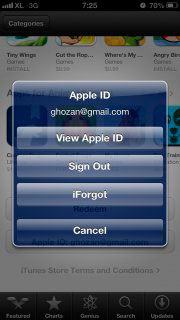
    App Store on your account and then select "View Apple ID".
    shopping tips on itunes

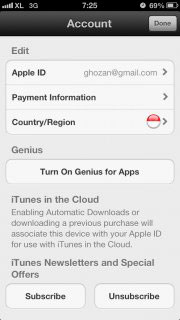
    Select "Payment information".
    shopping tips on appstore
  3. In the Payment Type select "None" then "Done". 

Safe Shopping Tips conclusions on iTunes / App Store

Shopping in iTunes is easy and fun, but you should always be alert to the dangers that lurk from people who are not responsible. Seoga by running a safe shopping tips that I write here can make you feel comfortable and no doubt in the shop.